no software to install, no monthly contracts to sign, no hidden charges
Create New Invoice
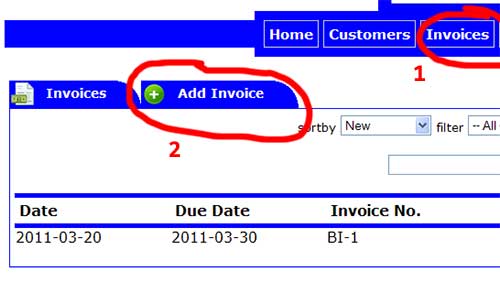
1) Click on invoices
2) Click on add invoice
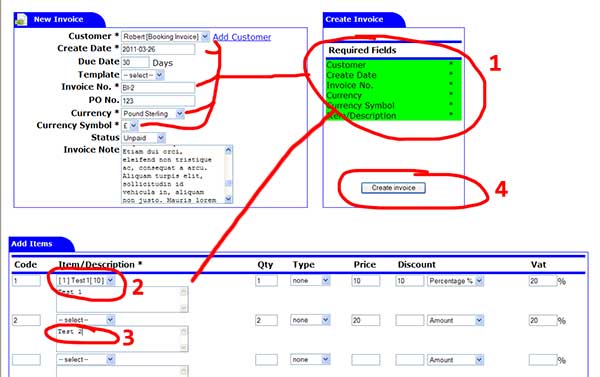
1) Fill in required fields marked with *
2) Select drop down list for predefined items
3) Type a non predefined item in text box
4) Click on create invoice
Customer: select a customer to make invoice for (required)
Create date: date of invoice (required)
Due date: number of days for payment (e.g. 30)
Template: template to use for invoices
Invoice no.: invoice number (required)
PO no.: purchase order number
Currrency: currrency to use on invoice (required)
Currrency symbol: currrency symbol to use on invoice (required)
Status: Paid, Pending, Failed, Invalid, Cancelled, Refunded, Unpaid
Invoice Note: extra information to include on the invoice
Item/Description: add item or service offered (required)
Add Payment to Invoice
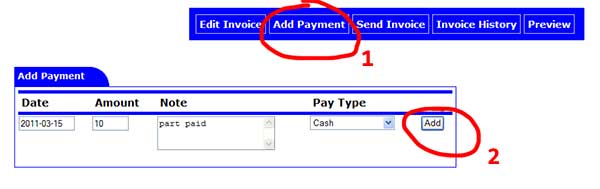
1) Click on add payment
2) Fill in payment information click on add
Send Invoice
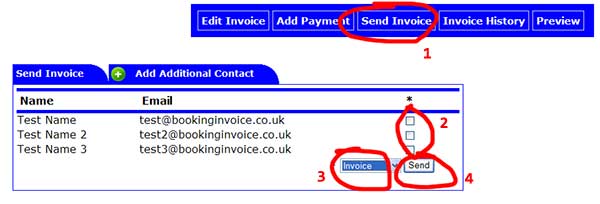
1) Click on send invoice
2) Select email recipents to send booking to (required)
3) Select email to send (required)
4) Click on send